YouTube Banner Size Guide: Safe Area, Breakpoints, and Free Template
Master YouTube banner dimensions (2560×1440 px) with exact safe zones for mobile, tablet, desktop, and TV. Includes full-size raw templates and design blueprints.
Designing a YouTube banner (also known as YouTube Channel Art) is notoriously tricky because a single image file has to look good across four drastically different form factors: wide desktop monitors, tablets, mobile smartphones, and 4K smart TVs.
If you place your channel name or tagline even slightly too far to the left or right, it gets violently cropped on smartphones—where over 70% of YouTube viewership occurs. Conversely, if you design only for mobile, your banner can look empty, pixelated, or awkward when stretched across desktop screens and TV displays.
In this guide, we break down the exact pixel dimensions, responsive breakpoint zones, and design hierarchy required to make your banner look professional everywhere. We've also included a full-size 2560×1440 px raw template image created in Figma that you can download and use directly in your projects.
The Master YouTube Banner Dimensions at a Glance
YouTube officially recommends a master canvas of 2560 × 1440 pixels with a 16:9 aspect ratio. Here is how YouTube crops that single canvas across each device:
| Display Zone | Resolution (px) | Aspect Ratio | Visible On | Key Rule |
|---|---|---|---|---|
| Mobile Safe Area | 1546 × 423 | ~3.65:1 | All devices (Smartphones, iPads, Laptops, Desktops, TVs) | Crucial: Keep all titles, logos, subtitles, schedule info, and CTAs strictly inside this box. |
| Tablet Display | 1855 × 423 | ~4.38:1 | Tablets (iPad, Galaxy Tab, etc.) | Adds 154 px of width to the left and right of the mobile safe area for supporting badges or icons. |
| Desktop Display | 2560 × 423 | ~6.05:1 | Laptops, PC monitors, and Ultrawide screens | Full horizontal banner band. Outer wings (left and right) are ideal for decorative graphics or community stats. |
| TV Display | 2560 × 1440 | 16:9 | Apple TV, Android TV, Smart TVs, PlayStation, Xbox | The entire image canvas is visible as a cinematic backdrop behind the channel interface. |
The Full-Size YouTube Banner Template (2560 × 1440 px)
Below is the complete, high-resolution responsive blueprint generated directly at 2560 × 1440 px. It shows the color-coded boundary markers for each device, along with a production-ready channel layout:
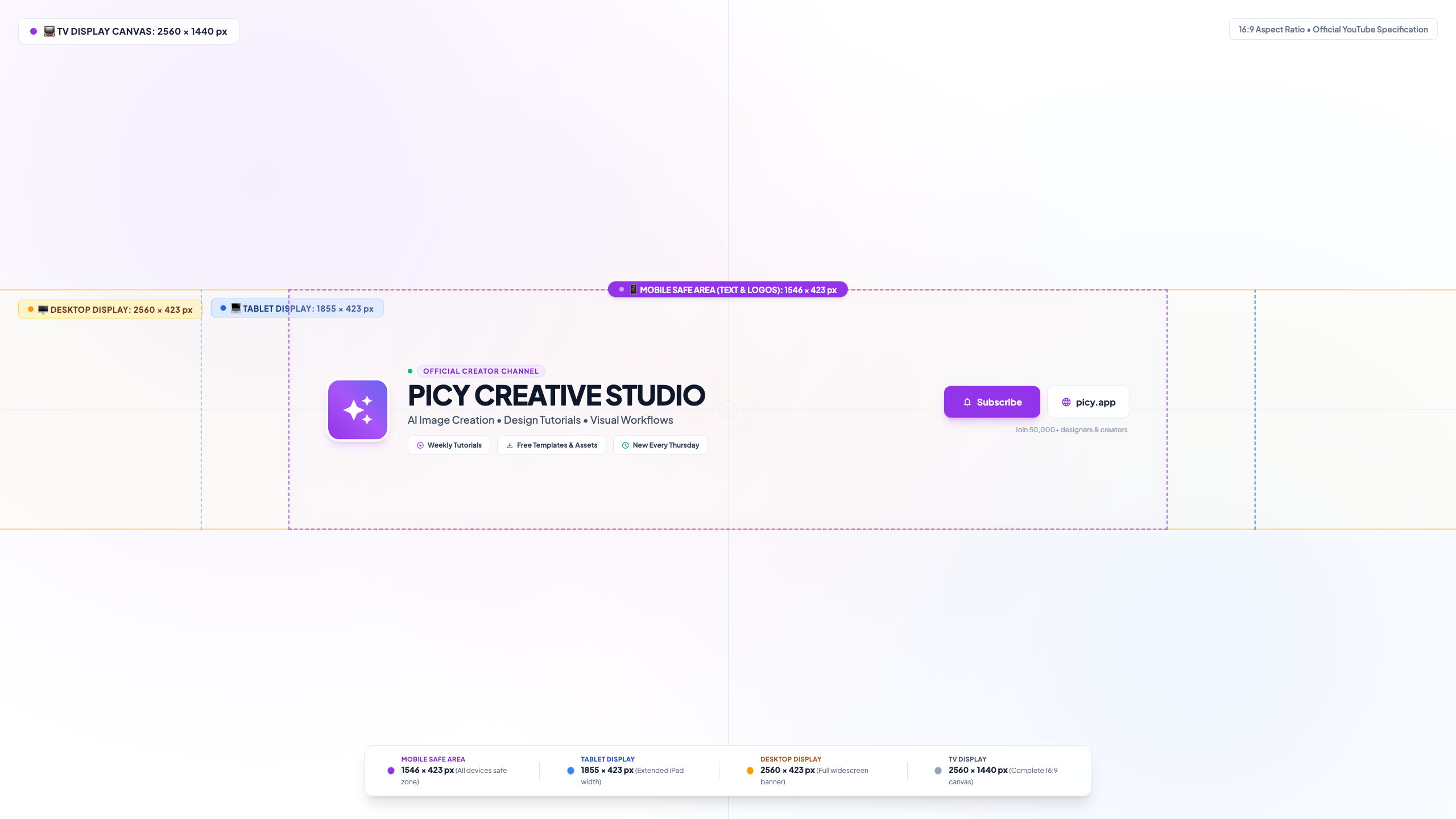
📥 Download Full-Size Raw Template: Click here to open and save the full-resolution 2560×1440 PNG template. You can place this file directly as an overlay layer in Figma, Photoshop, or your favorite design tool to align your text and branding with pixel-perfect accuracy.
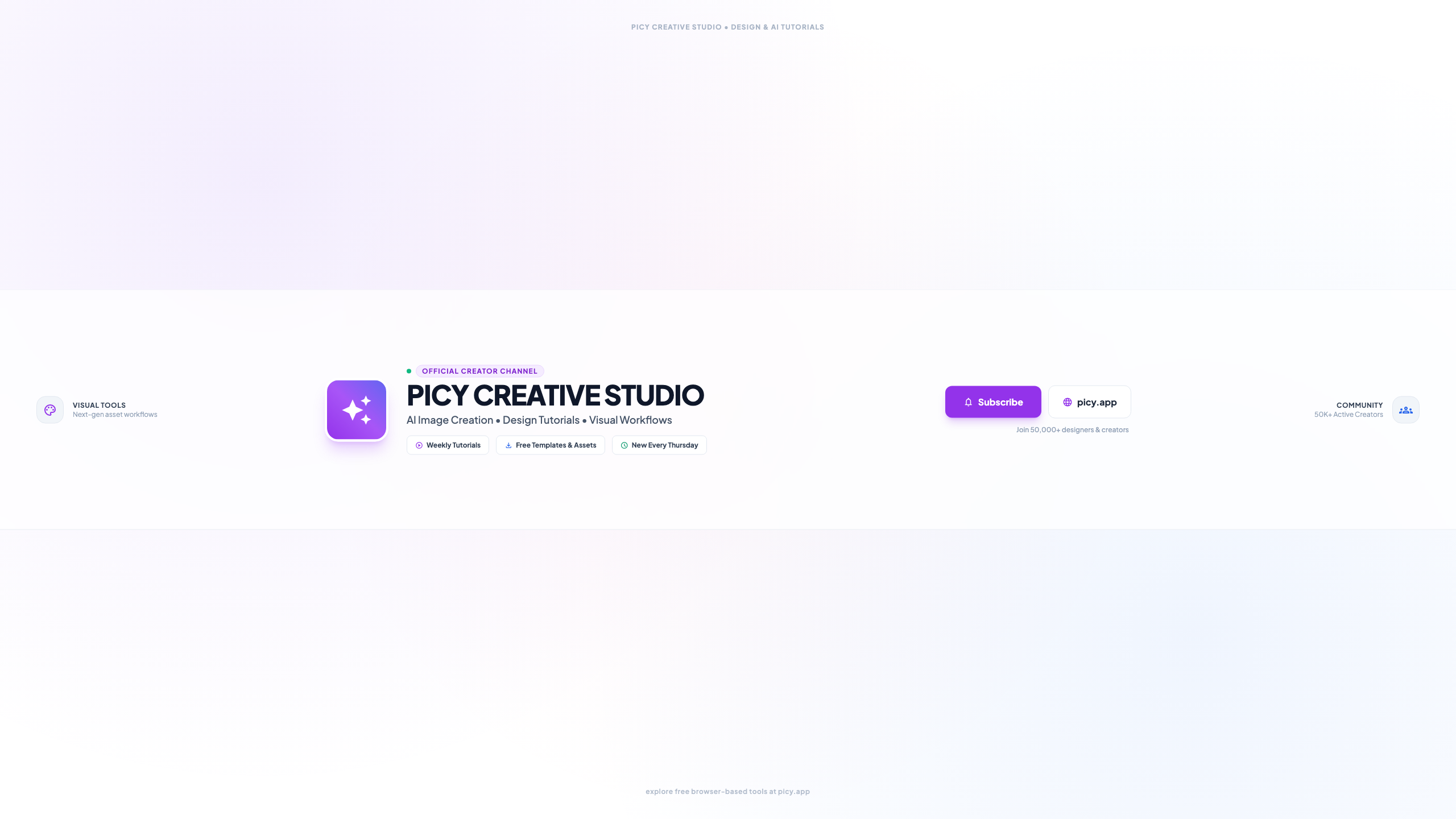
And here is how the channel art looks when the guide lines are removed—clean, focused, and balanced across all viewports:
Decoding the 4 Responsive Breakpoints
To create a banner that never feels clipped or unbalanced, structure your design in concentric zones from the center outward.
1. The Mobile Safe Area (1546 × 423 px) — The Golden Box
The mobile safe area is centered both horizontally and vertically at:
- X-coordinates: 507 px to 2053 px (width = 1546 px)
- Y-coordinates: 508 px to 932 px (height = 424 px)
Everything essential to your channel identity must live inside this 1546 × 423 box:
- Channel Name & Logo: Your avatar, brand monogram, or primary typography (e.g., “PICY CREATIVE STUDIO”).
- Value Proposition: A concise tagline explaining what your channel or blog covers (e.g., “AI Image Creation • Design Tutorials • Visual Workflows”).
- Upload Schedule & Highlight Chips: When viewers should return (e.g., “Weekly Tutorials • Free Templates & Assets • New Every Thursday”).
- Primary Call-to-Action: A clear Subscribe button and your primary domain (picy.app).
On mobile apps (iOS & Android), YouTube trims off everything above, below, and to the sides of this rectangle. If your primary text sits outside this box, mobile viewers will only see half of your words.
2. The Tablet Display (1855 × 423 px)
Tablets display an extra 154 pixels on either side of the mobile safe zone (from X: 353 to X: 2207).
Use these wings for secondary elements:
- Extended breathing room or secondary category tags.
- Subtle horizontal alignment guide lines.
- Supporting branding icons.
If these elements get cut off on a phone, the banner still makes complete sense. But on an iPad, they reward viewers with extra context.
3. The Desktop Display (2560 × 423 px)
On desktop computers, YouTube displays a wide ribbon across the top of your channel page at 2560 × 423 px.
The outermost margins (from X: 0 to 353 and X: 2207 to 2560) are visible only to computer users. Here you can add:
- Light Ambient Visuals: Subtle tools or community indicators (e.g., “Visual Tools” and “50K+ Active Creators”).
- Subtle Background Strip: A soft, semi-transparent white ribbon that contrasts elegantly against the canvas.
- Clean Grid Markers: Visible boundary guides that make layout calculations seamless.
4. The TV Screen (2560 × 1440 px)
When someone opens your channel on a smart TV or game console, YouTube displays your banner in full 16:9 fullscreen.
Do not leave the top and bottom bands pitch black or empty. Instead:
- Continue your background gradients or brand color palette.
- Add soft atmospheric lighting (ambient glow orbs, subtle grid textures, or starfields).
- Include subtle top or bottom canvas watermarks so the screen feels like a curated billboard rather than an unstyled canvas.
Technical Specifications & Upload Checklist
Before uploading your file to YouTube Studio, verify these constraints:
- Recommended Dimensions: 2560 × 1440 pixels
- Minimum Upload Dimensions: 2048 × 1152 pixels (16:9 ratio)
- Safe Area Dimensions: 1546 × 423 pixels (centered)
- Supported Formats: PNG, JPEG, GIF (static), or BMP
- Maximum File Size: 6 MB
Tip: High-detail 2560×1440 PNG files often export between 8 MB and 15 MB, which YouTube's uploader will reject. If your PNG exceeds the limit, run it through Picy's image compressor or convert it using Picy's image resizer to trim file weight without losing edge sharpness.
5 Practical Design Tips for High-Converting Banners
- High Contrast Typography: Use strong, bold sans-serif typefaces (like Inter, Montserrat, or SF Pro) with high contrast against your background. Avoid thin weights that disappear on small phone screens.
- Beware the YouTube Desktop UI Overlay: In the bottom-right corner of the desktop banner, YouTube renders external link icons (Twitter, Website, Discord). Avoid placing critical text in the bottom-right corner of the desktop slice (X: 2000 to 2560, Y: 800 to 932).
- No Clutter: You have less than two seconds to communicate what your channel offers. Keep your core message to a title, a 5–8 word tagline, and an upload frequency.
- Test on Real Devices: After uploading to YouTube Studio, preview your channel on both your mobile device and desktop browser before finalizing the change.
- Consistency with Thumbnails: Align your banner's color scheme, fonts, and brand avatar with your video thumbnails so visitors instantly recognize your visual identity.
Summary
Creating a standout YouTube banner comes down to respecting the safe zone: design your central 1546 × 423 px container first, then expand gracefully outward for tablet, desktop, and TV viewers.
Download the raw 2560×1440 template, keep your focal points centered, and use Picy's free suite of image tools to crop, resize, and compress your channel art for a seamless publish.